If you’ve ever wondered how your files get from your computer to a server and back, you’re in the right place. To the average user, a share is just a lettered drive (e.g., Z:) or a folder on the network. While we usually think of an SMB share as a folder full of spreadsheets, the protocol is just as comfortable talking to network printers. When you send a document to the office laser printer, an SMB packet is born with the exact same mission: find the resource, authenticate, and deliver the payload.
Beneath the surface, that share is the destination of a complex, high-speed pilgrimage. Server Message Block (SMB) is the workhorse of Windows-based file sharing. While you might interact with it daily by dragging and dropping files, there’s an incredibly detailed dance happening under the hood. We’re going to break down this dance, from the very first hello to the final goodbye.

Phase 1: The Negotiation – Finding Common Ground
Our story begins not with a handshake, but with a friendly greeting. Before the SMB share can even show you a single file, the Client (your PC) and the Server (where the share lives) have to agree on how they are going to talk. Picture a little packet, just born in the depths of your operating system’s kernel, introducing itself to the server, and figuring out what language they both speak.
This is the SMB_COM_NEGOTIATE phase. The client (your computer) creates a packet and stuffs it full of dialects i.e., versions of the SMB protocol it understands. “Hey,” the packet says as it zips across the network, “I can speak SMB 2.1, SMB 3.0, and even the fancy new SMB 3.1.1. Which one do you like?”
When the packet arrives at the server, the server takes a look at the list. It wants the best performance and security, so it picks the highest dialect it also supports. “Ah,” the server replies, “I speak SMB 3.1.1 too! Let’s use that.” It sends a response packet back to the client, confirming the chosen dialect.
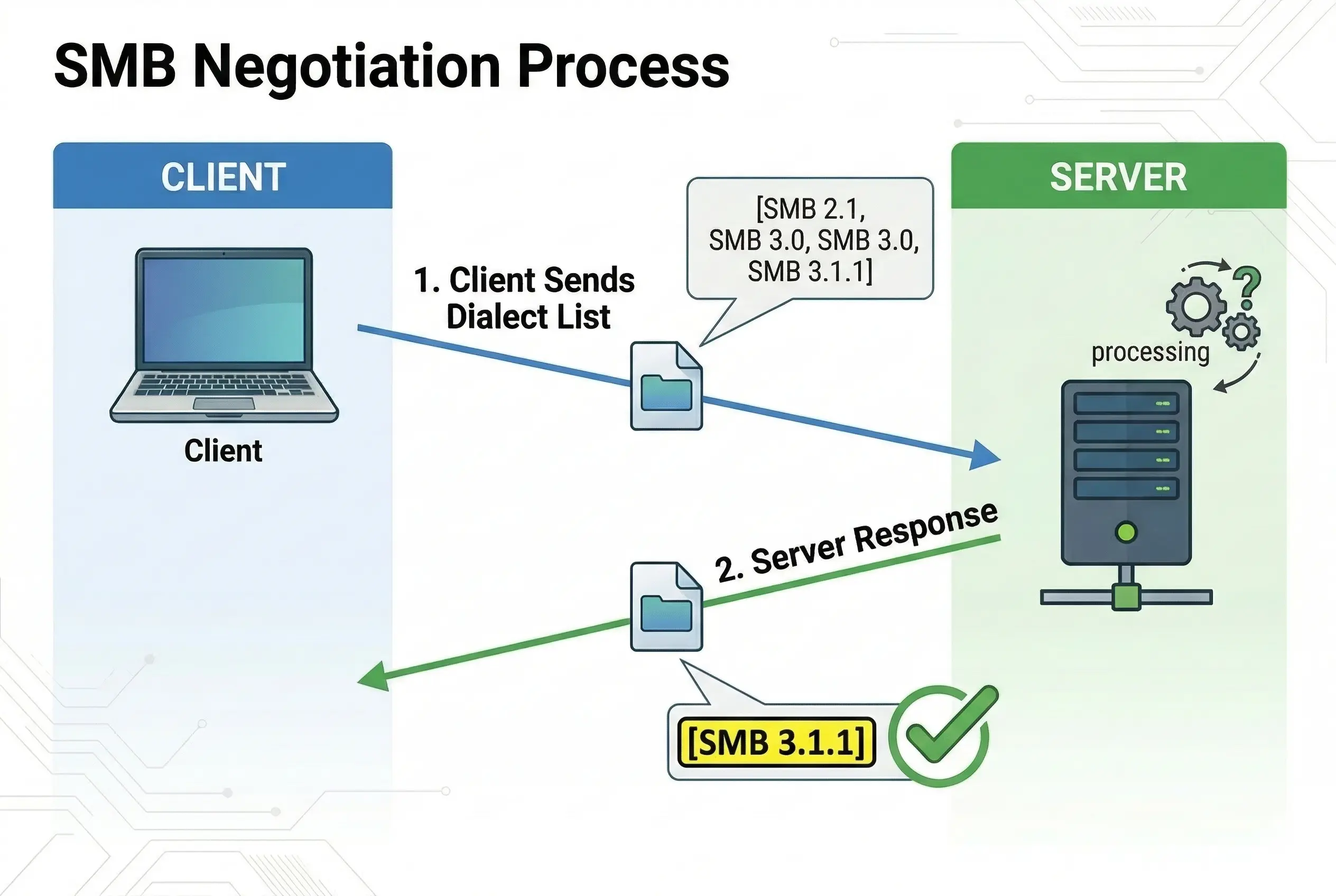
Other “Negotiate Contexts” include the security algorithms. The packet essentially says, “I can sign my work using AES-GMAC, and if you want to encrypt our talk, I’ve got AES-256-GCM ready to go.”
The server picks the highest dialect and the strongest encryption / signing algorithms they both support. It sends a response confirming the “security suite” for the journey ahead. By the time this phase is over, the “encryption engine” is already picked out and ready to be ignited.
This sets the ground rules for everything that follows. Without this negotiation, it’s like two people trying to talk when one only speaks English and the other only speaks Martian.
Phase 2: The Session Setup – Building a Secure Path (Critically Important)
Now that the SMB client and server know they’re speaking the same language, it’s time to build a private, secure workspace for their conversation. This is the SMB2_SESSION_SETUP phase. It’s like the moment you enter a private meeting room and close the door.
This phase is where the exciting, and sometimes complex, work of Authentication and Signing happens. Let’s make one thing clear: if your environment is set up properly (and it really, really should be!), this phase is non-negotiable for real-world file sharing. Without it, you’re a wide-open target for man-in-the-middle attacks, where someone could intercept or change your packets without you ever knowing.
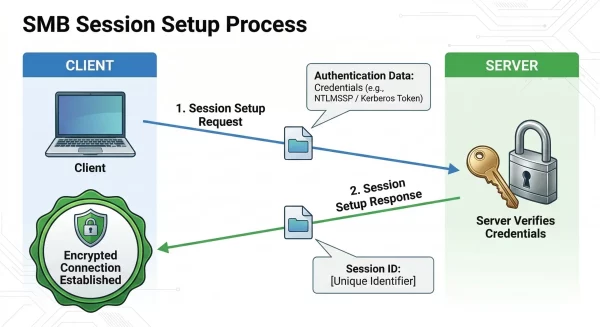
The client kicks things off by sending a Session Setup Request packet. This packet is loaded with credentials, typically your username and a hashed version of your password. This packet essentially says, “Hi, it’s me, [Your Username]. I’ve negotiated our dialect, and here are my credentials to prove who I am. Can I have a session?”
The server receives this packet and uses its own magic (or, more likely, a Domain Controller) to verify the credentials. If they match, the server responds with a Session Setup Response. This response is crucial because it contains a Session ID, a unique number that acts like a temporary badge for all future packets in this session. Every packet from here on out will have this Session ID, proving it belongs to our established, secure conversation.
Phase 3: The Tree Connect – Finding the Door to Your Files
With a secure session established, we’re ready to get to the actual work. Our packet now has its Session ID badge, but it doesn’t yet know where on the server to go. Imagine the server is a giant library. The Session Setup got us in the front door, but we still need to find the specific section, or share, that we want to access.
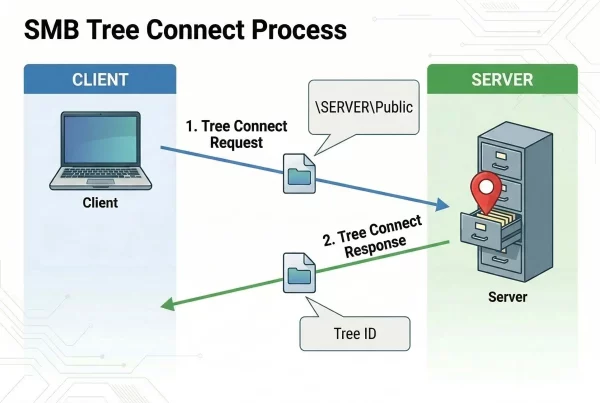
This is the SMB2_TREE_CONNECT phase. Our packet is crafted with the specific path to the share you’re trying to reach (e.g., \\SERVER\Public\Documents). It’s like a note that says, “Okay, I’m here. Now, please take me to the ‘Public’ share’s ‘Documents’ folder.”
The server receives this packet, checks its records to make sure the share exists, and then verifies that the user associated with the Session ID (that’s you!) has permission to access it. If everything checks out, the server creates a structure called a Tree Connect and sends back a response. This response contains a Tree ID, which is like a map key or a direct elevator button to that specific share.
From now on, our packets will carry both a Session ID and a Tree ID, making sure they not only belong to the right conversation but are also pointed at the right location on the server.
During the Tree Connect, the packet doesn’t just provide a path; it identifies the Service Type. If you’re mapping a drive, the packet seeks a Disk share. But if you’re printing, the packet requests a connection to a Print queue. The server then prepares its spooler instead of its file system to receive the coming data.
Phase 4: The Read and Write – The Workhorse of the Journey
This is what we came here for. All the negotiation, security setup, and finding the right share was just to get to this point: actually moving your file data.
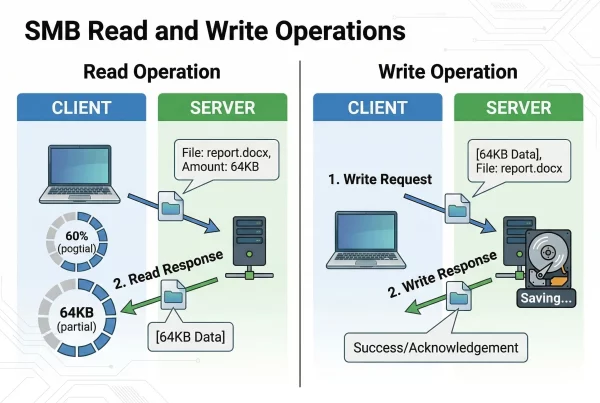
Let’s imagine you’re opening a document to read. The process uses SMB2_READ packets. The client builds a request: “I’d like to read the next 64KB of data from the file ‘important_report.docx’ starting at position 1024.” This request is packed up with the Session ID and Tree ID and sent to the server.
By the way, this is the real beauty of the protocol. Because SMB allows you to read and write in specific portions (offsets), there’s no need to download a whole 500MB file just to read a few bytes of metadata or update a single row in a database. It’s surgical and efficient.
The server, knowing exactly which file and share we’re talking about, locates the file on its disk, grabs that 64KB of data, and packages it into an SMB2_READ Response. It then sends this packet back to the client, where your application is eagerly waiting for the data to display. This process is repeated until the entire file has been read.
Now, let’s say you’re saving a file. This uses SMB2_WRITE packets. The client creates a packet filled with the data you’ve just typed or changed in your document. The request says, “Here is 64KB of new data to write into ‘important_report.docx’ starting at position 2048.” The server receives the packet, writes the data to the disk, and sends back an SMB2_WRITE Response, simply saying “Message received, data written.”
This is the phase where you’ll spend the vast majority of your time and transfer the most packets. It’s the core reason SMB exists.
Phase 5: The Final Exit – Close, Disconnect, and Logoff
All good things must come to an end, and so must our file-sharing session. When you’re done with a file and you save and close it, your operating system isn’t just being tidy. It is initiating a three-stage “goodbye” to ensure the server stays healthy and secure.
First comes the SMB2_CLOSE phase. Our packet is built with the request: “I am finished with the file ‘important_report.docx’. You can close it now.” This packet, still carrying its Session ID and Tree ID, is sent to the server. The server receives it and proceeds to clean up. It closes the internal handles, flushes any remaining data from cache to the physical disk, and releases any locks on the file so that other users can access it.
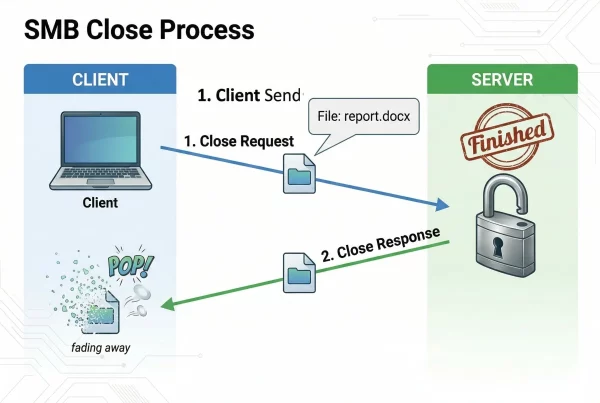
But the journey isn’t quite over. Just as you wouldn’t leave a library by just putting a book back on the shelf, the packet needs to leave the building. It follows up with an SMB2_TREE_DISCONNECT, which tells the server, “I don’t need access to the ‘Public’ share anymore.” This retires the Tree ID we picked up earlier. Finally, the packet performs its ultimate act: the SMB2_SESSION_LOGOFF. This invalidates the Session ID, effectively “logging out” and ensuring that no one can hijack the connection now that you’re gone.
This is the packet’s final act, the concluding note in its long and complex journey. It was born for a purpose, whether that was fetching a spreadsheet or delivering a print job. It served that purpose with speed and security. Now, with the session officially dissolved, it can rest.
The Journey’s End
And there you have it, the multi-phased life of an SMB packet: from the dialect negotiation to the session setup with its critical security layers, to finding the right folder and share, through all the read and write work, and finally, to the clean and proper close. Every file you share, every document you open from your server, kicks off this journey.
The SMB Identity Cheat Sheet
As our packet travels through the network, it collects “badges” (IDs) that tell the server exactly who it is and what it’s doing. Here’s a quick reference to the IDs we encountered:
ID Badge | Acquired During… | What it represents… |
Dialect / Ciphers | Negotiate | “Language” and “Security Toolkit” (Encryption/Signing) used |
Session ID | Session Setup | “Identity Badge” proving the user is authenticated |
Tree ID | Tree Connect | “Map Key” for a specific share (e.g., a Folder or a Printer) |
File ID | Create/Open | “Handle” for a specific file currently being read or written |
We hope you’ve enjoyed this look into the invisible world of the SMB network protocols. Feel free to share this article, and don’t hesitate to ask any questions you have. We love diving deep into these topics!